Meet the three windows
Choose between the workspace, Hub, Quick Look, tabs, and Split View.
UpdatedOn this page
Screenshots show the macOS development build based on 3.2026.920.
What each window does
| Window | Purpose | Open it | Where work continues |
|---|---|---|---|
| Workspace | Browse folders, edit files, keep tabs, split the view and save | Start the app; New Window in the top bar; ⌘N / Ctrl+N | In that workspace’s tabs |
| Hub | Find apps, files and folders; create files; resume work | Hub / + in the top bar or tab rail; ⌘Shift+H / Ctrl+Shift+H | In the most recently active workspace |
| Quick Look | Temporarily preview a selected file | Select a file in the browser and press Space | Esc closes it; Open in Window continues in the workspace |
A new tab, a new file, and a new window are different operations. To add a tab, open Hub first. ⌘N / Ctrl+N creates another workspace window.
Workspace: your everyday work
Navigation on the left opens locations and folders. The tab rail switches open content, the center contains the active tool, and the inspector on the right provides information and contextual AI actions. The top bar contains Hub, Split View, New Window, keyboard shortcuts, and Settings. Toolbars change with the active app.
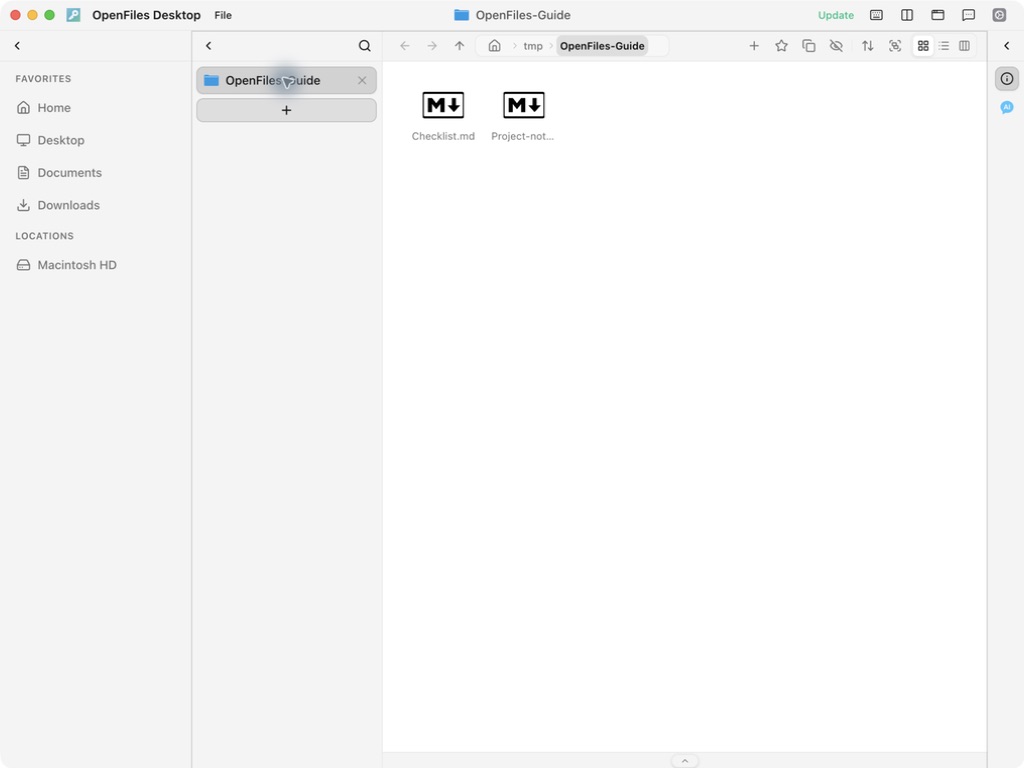
Screenshots show the macOS development app based on 3.2026.920, using demonstration files only. Windows window controls differ; shortcuts for both platforms are included below.
Hub: the entry point for new tabs
Hub opens a separate search window. Search files inside open folders or choose an app below. Apps that need a file open a file picker. New File creates a document before opening its editor. A successful selection usually closes Hub and opens content in the focused group of the most recently active workspace. Equivalent content already open in that group reuses its tab.
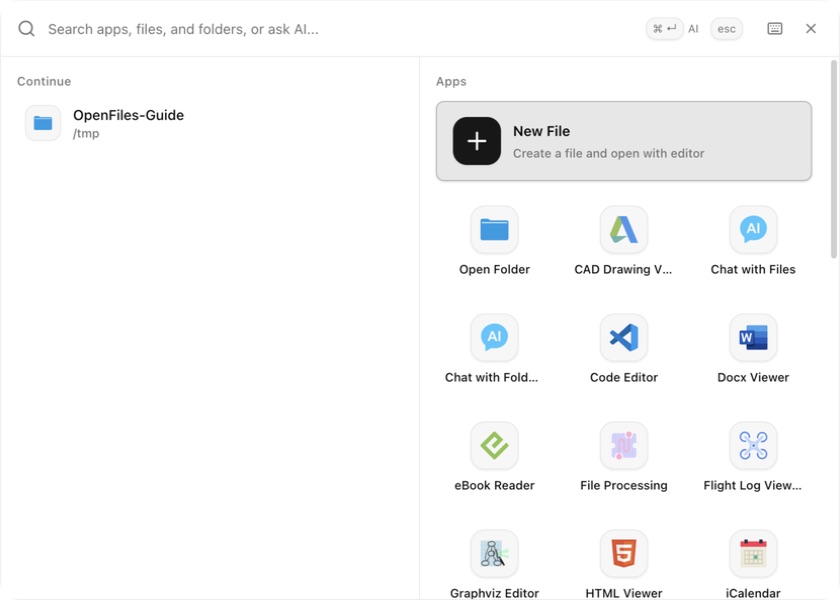
See Open a new tab with Hub for the full procedure.
Quick Look: a temporary preview
Select a file in the file browser. With focus in the listing rather than a search or rename field, press Space. Press Esc to close the preview. To continue editing, choose Open in Window and use a suitable tool.
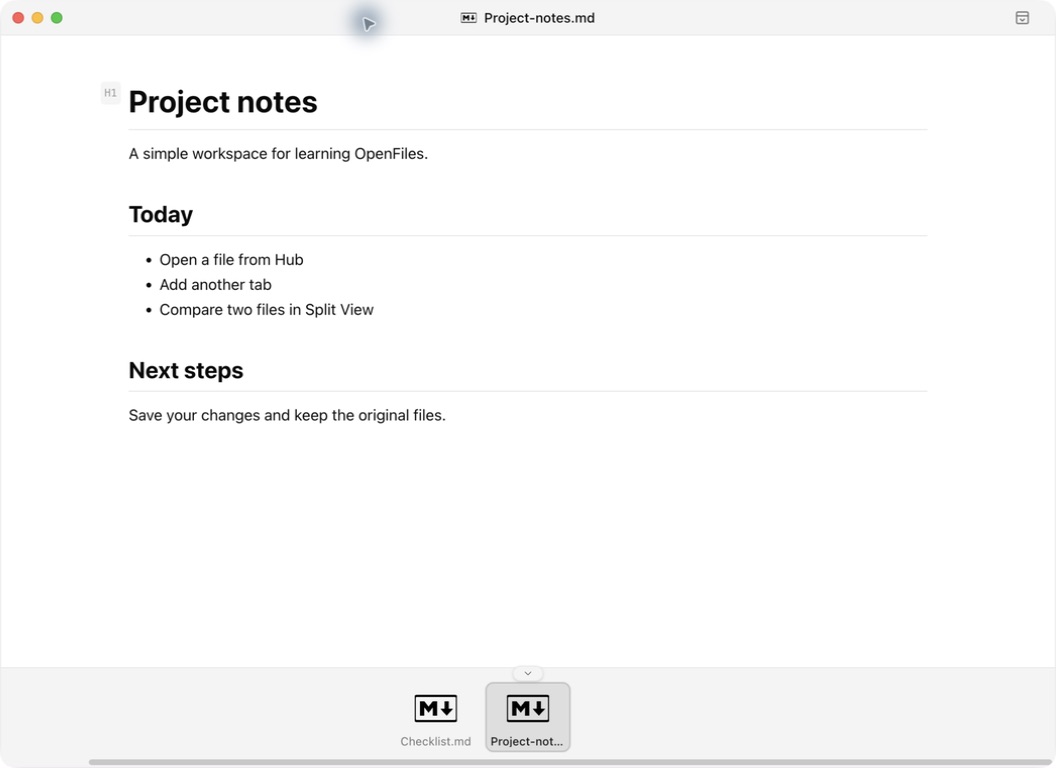
See Quick Look.
Tabs, a split, or a new window?
- Switch files within one task: keep several tabs.
- See two items at once: use Split View, with a tab group on each side.
- Work across monitors or independent tasks: create another workspace window.
Saving, printing, and tool shortcuts target the active content. Click the intended pane and check its file name first.
Something unclear or different in the app? Let us know.