Open a new tab with Hub
Open Hub, select a file or tool, and check the destination tab group.
UpdatedScreenshots show the macOS development build based on 3.2026.920.
Open Hub
In the target workspace, click Hub in the top bar or the Hub / + entry at the end of the tab rail. Alternatively press ⌘Shift+H on macOS or Ctrl+Shift+H on Windows. Hub creates or opens content; ⌘N / Ctrl+N is for a new window, not a new tab.
In Split View, first click the pane that should receive the content. With several windows, activate the target workspace first.
Open an existing file
- Type a filename in Hub. Search includes folders opened in the workspace; do not assume your entire disk has been indexed.
- Click a matching file, or choose an app such as Markdown Editor and select a file in the system picker.
- After Hub returns to the workspace, check the tab name and group. If the same tool and file are already open in that group, the existing tab is selected.
Create a file or open a tool
Choose New File in Hub, select its type, name and location, then continue in the editor. Tools that do not require a file can open directly as an app tab. Esc or the close button dismisses Hub without closing the workspace.
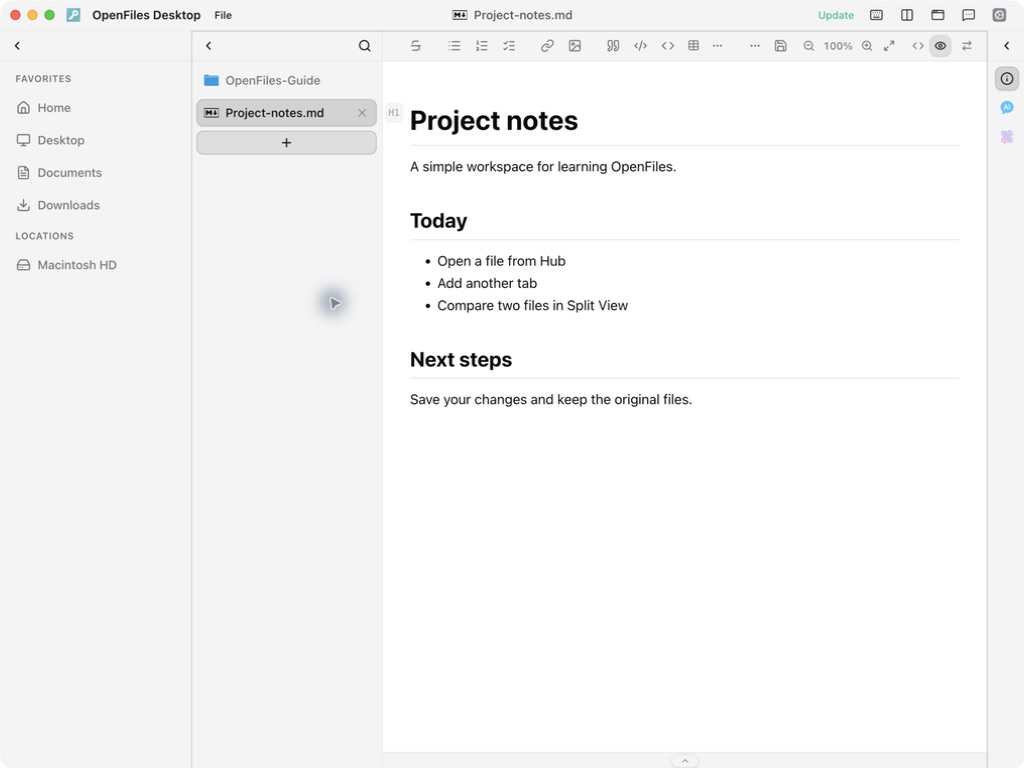
macOS development capture based on 3.2026.920. If no new tab appears, check existing tabs, the active split pane, and any pending file picker.
Switch and close
Click a tab to switch content. Use its close button or ⌘W / Ctrl+W to close the active tab. Respond to unsaved-change prompts before continuing. For simultaneous reading, see Split View.
Something unclear or different in the app? Let us know.