Quick Look
Preview a selected file with Space, return with Esc, or continue in the workspace.
UpdatedScreenshots show the macOS development build based on 3.2026.920.
Preview from a file listing
Select a file in the file browser and press Space. Focus must be in the listing, not a search field, rename field, or editor. Quick Look opens a separate preview window. Available previews depend on the file type and viewer.
Browse and close
Use the preview’s zoom, page, or media controls. The gallery at the bottom helps browse neighboring content. Press Esc or close the window to dismiss the preview; workspace tabs remain open.
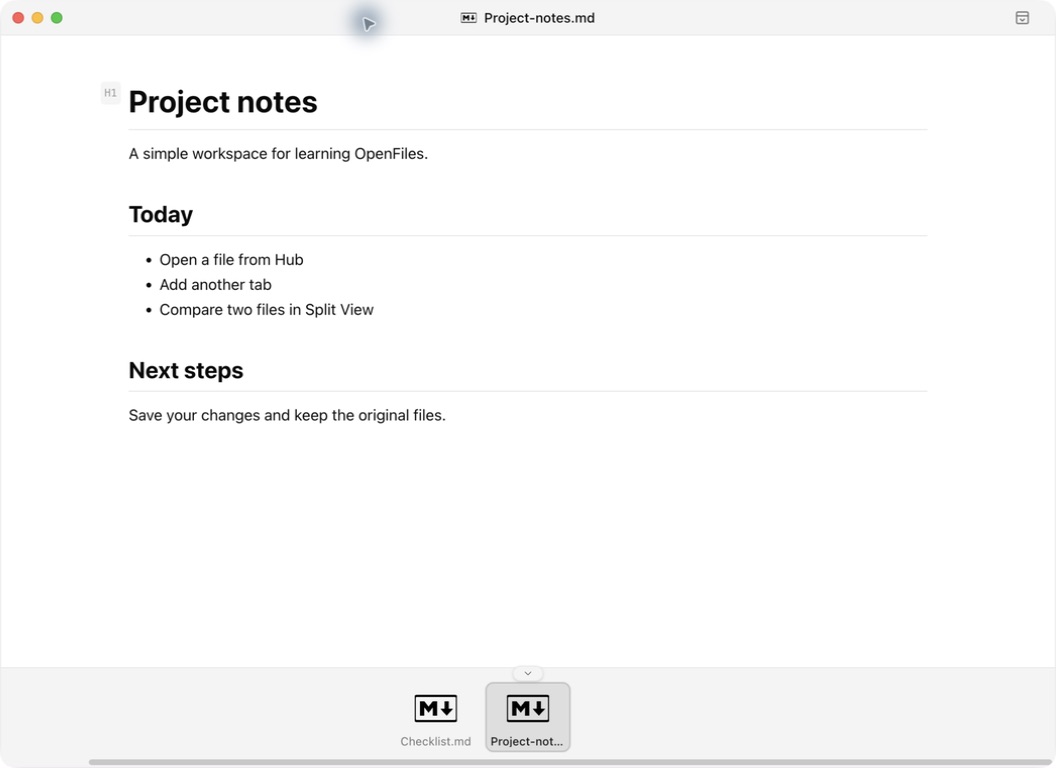
macOS development capture based on 3.2026.920.
Continue in the workspace
Choose Open in Window (currently labeled “在窗口中打开”) at the top right to open the file in the workspace. A preview is not necessarily an editor. Before modifying or saving, confirm the active workspace tool and file path.
If Space does nothing, leave the input field and select the file again. Large or unsupported files may require more time or a different tool. See Open files.
Something unclear or different in the app? Let us know.