Use Split View
Open two groups, choose a second file, resize the panes, and return to one view.
UpdatedScreenshots show the macOS development build based on 3.2026.920.
Open a split
Open a file, then click the two-column Split View icon in the top bar, or press ⌘\ on macOS / Ctrl+\ on Windows. The workspace opens a right-hand group with another tab for the active content. Seeing the same file on both sides initially is expected; no duplicate file is created on disk.
Without an active tab, a pane may be empty until you open content. Workspace Split View is separate from the Markdown editor’s source/preview split.
Show different content on each side
- Click inside the right pane to focus that group.
- Open Hub and search for another file or choose its tool.
- The content opens in the focused group. You can also drag an existing tab into the other group.
- Check both filenames before reading or editing.
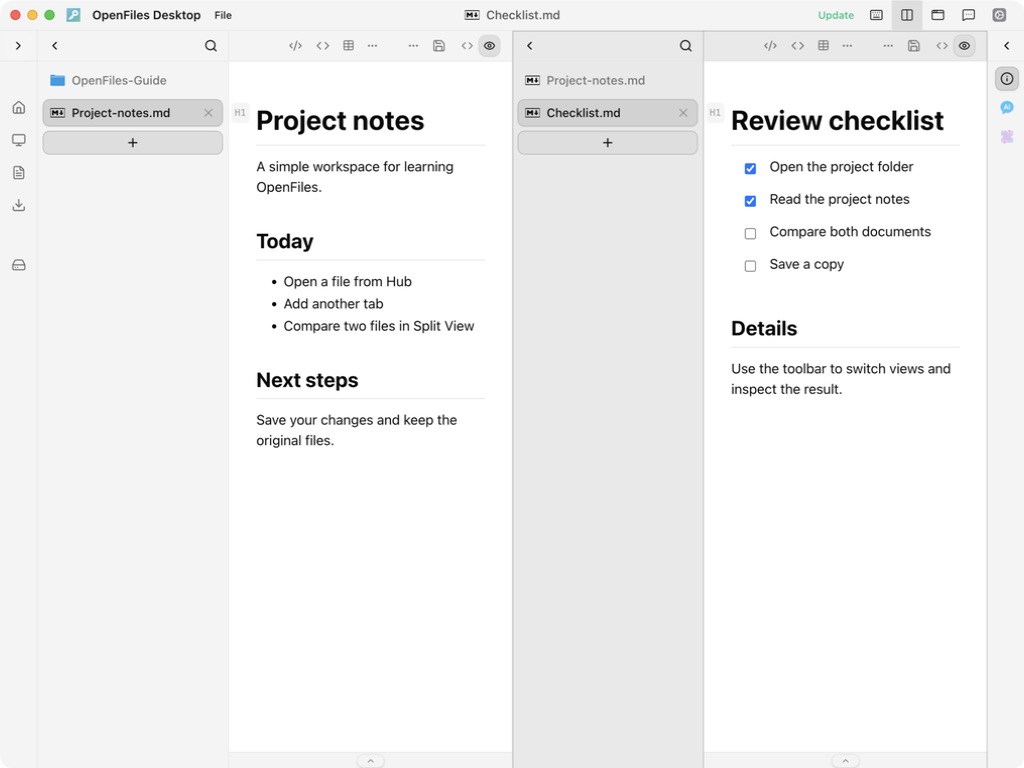
macOS development capture based on 3.2026.920.
Resize and work
Drag the divider to adjust the pane widths. Each group has an active tab. Click the intended side before saving, printing, or using tool shortcuts. When two editors show the same file, avoid alternating saves of conflicting contents; decide which version to keep first.
Close the split
Click Split View again or use the same shortcut. Right-hand tabs merge into the left group; duplicate tabs without unsaved changes can be consolidated. Closing the split does not delete files or automatically save edits. Check the remaining tabs and unsaved state before continuing.
Something unclear or different in the app? Let us know.